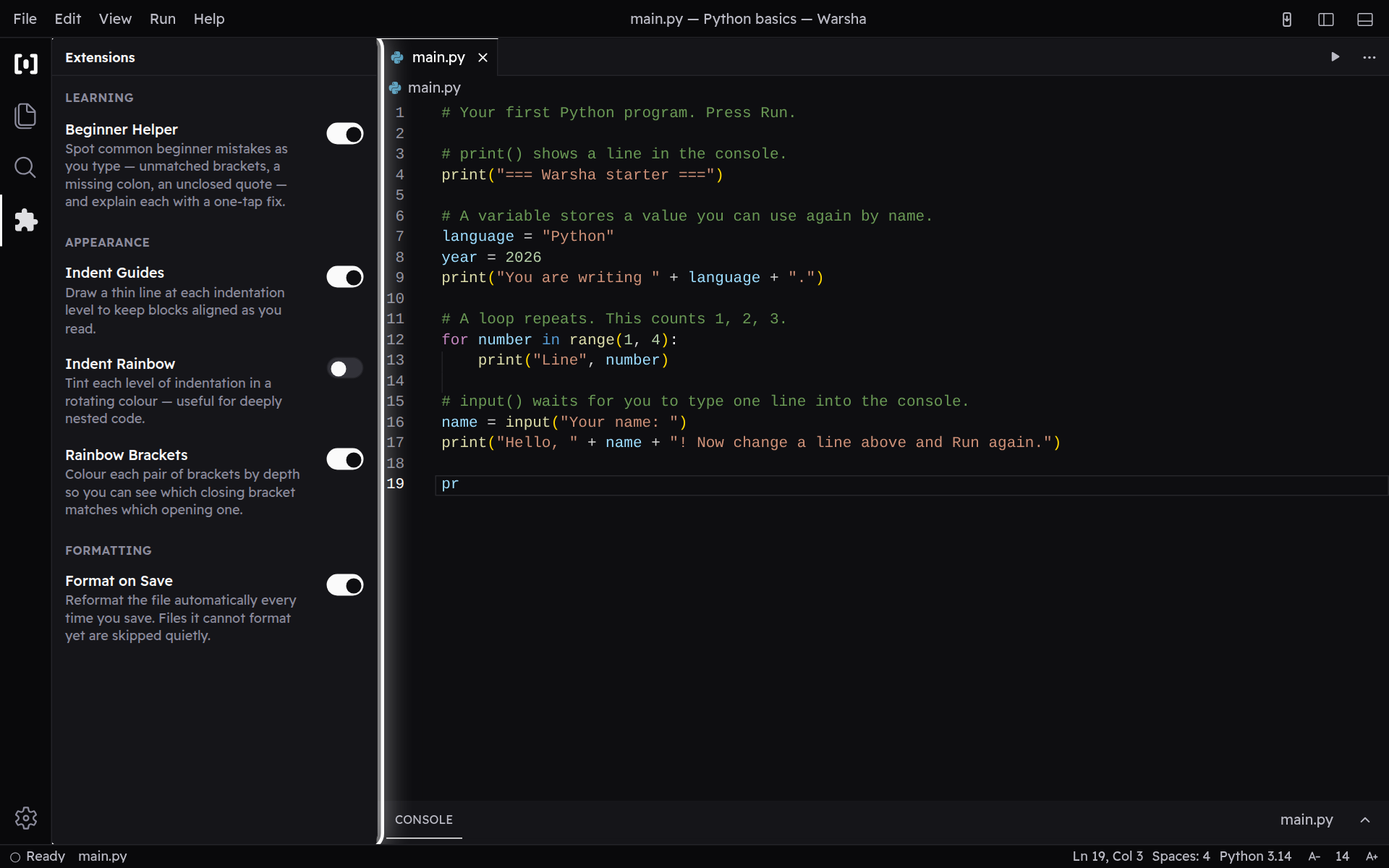
Make Warsha yours
Open the settings and tune Warsha to fit your screen and the way you like to work.
-
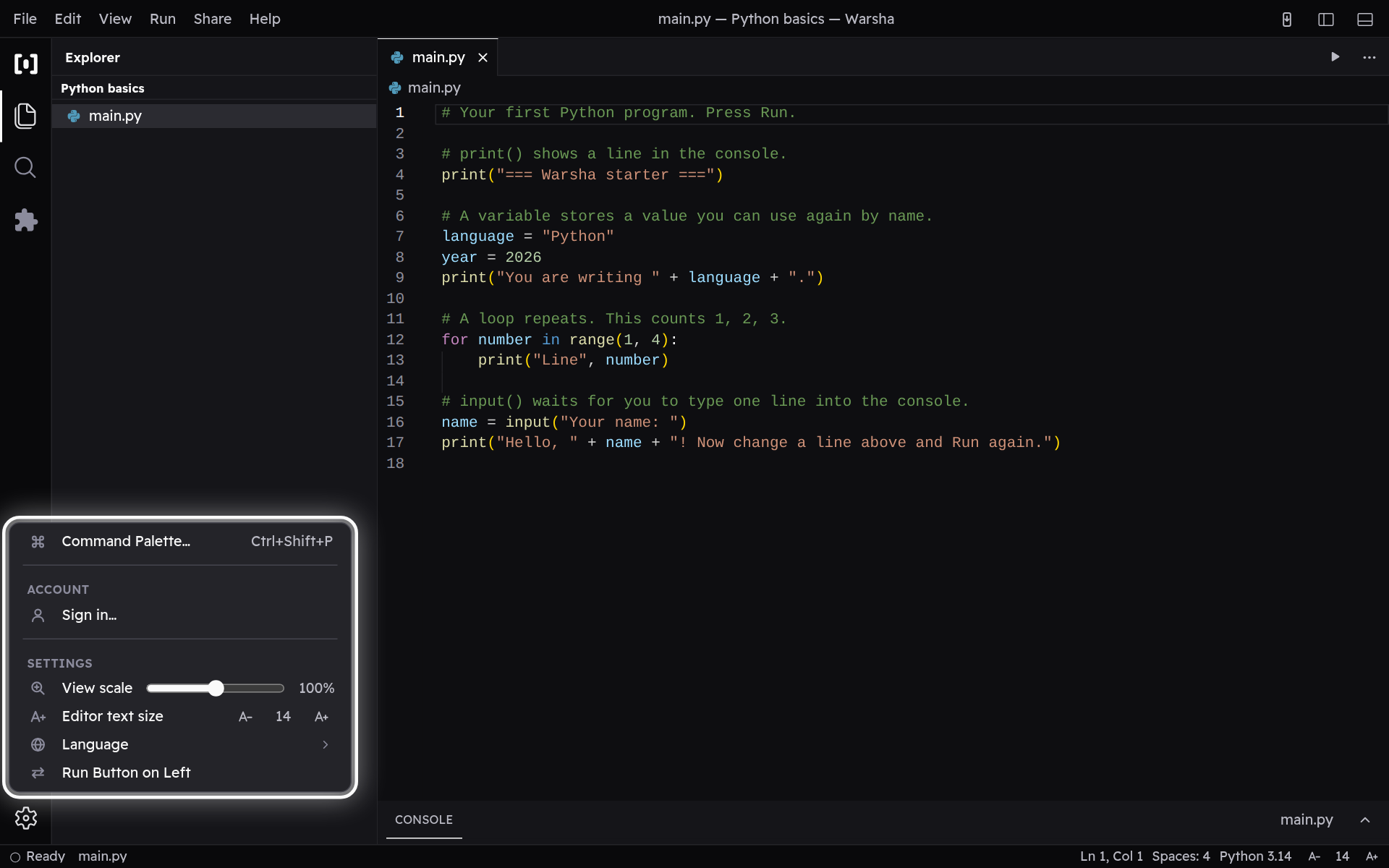
The Manage menu
Tap the gear at the bottom of the left bar to open Manage — this is where the app-wide settings live. Everything you change here is remembered on this device.
-
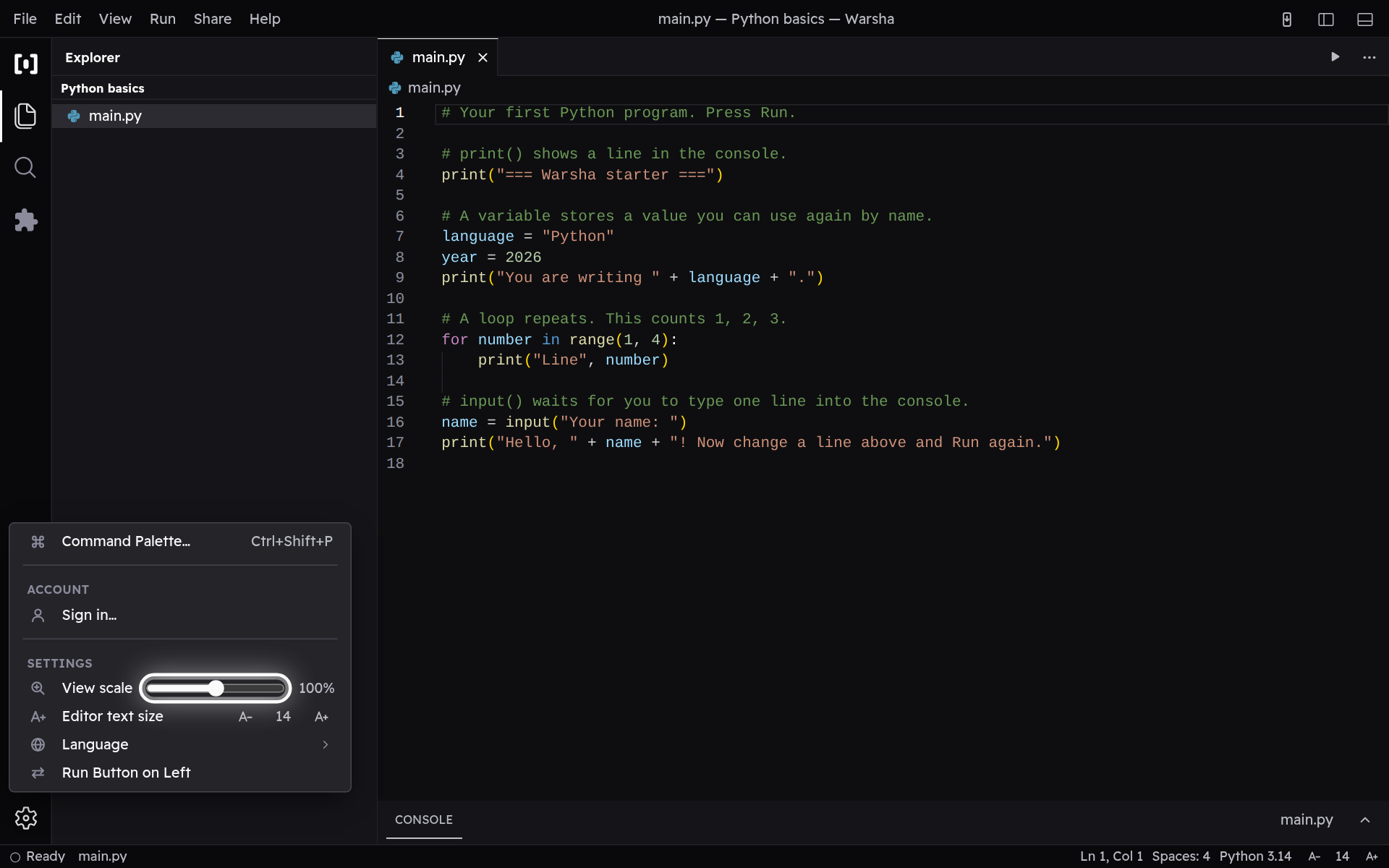
Resize the whole interface
Drag the View scale slider to make everything — text, buttons, panels — bigger or smaller, from 70% up to 130%. Zoom In and Zoom Out do the same thing in steps, which helps on a small phone screen.
-
Turn editor features on or off
Open Extensions from the left bar and flip a switch to turn each built-in feature on or off. Format on Save, for example, tidies your file automatically every time you save it.