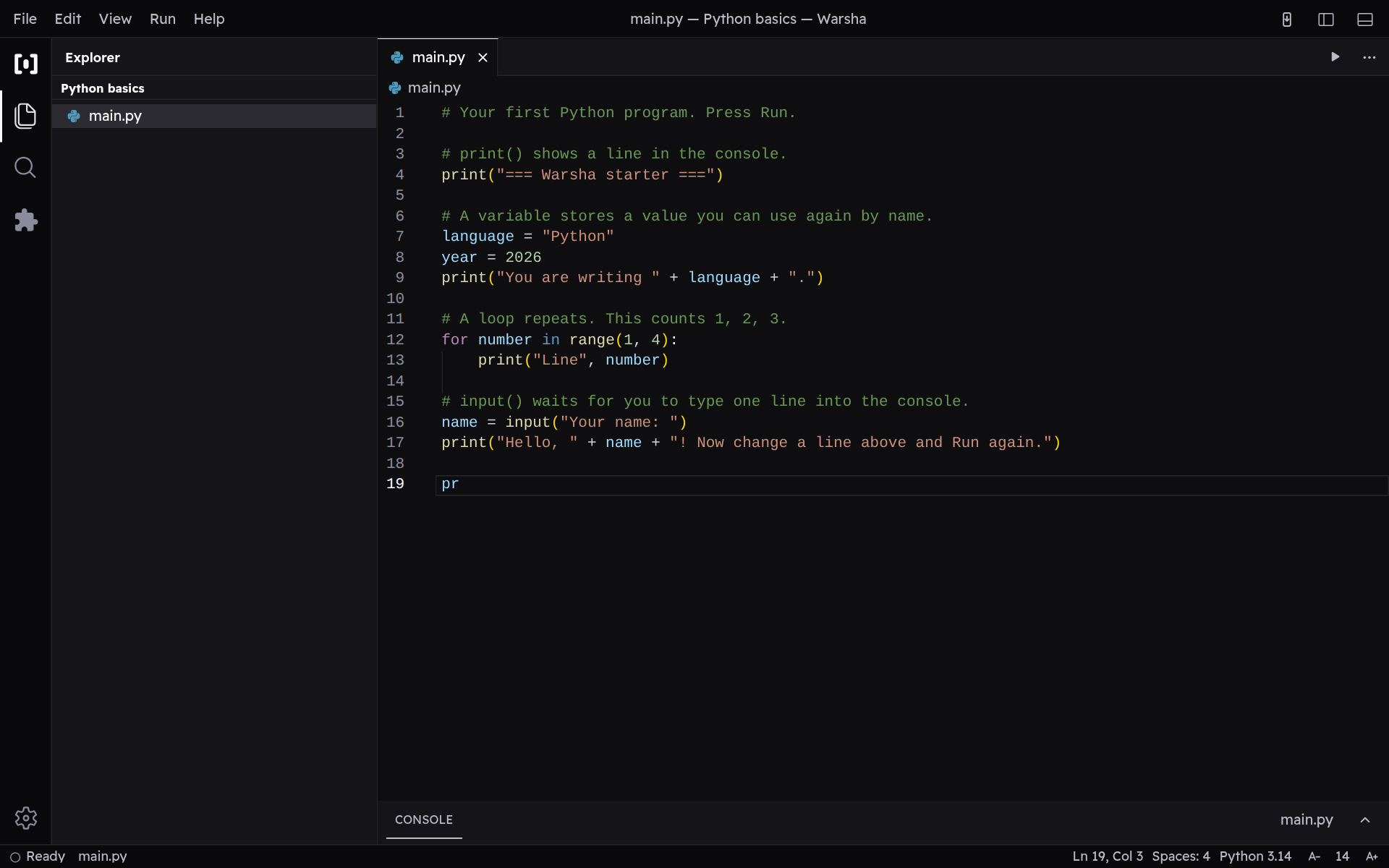
Write and edit code
Get comfortable in the code editor — highlighting, tabs, and autocomplete.
-
The code editor
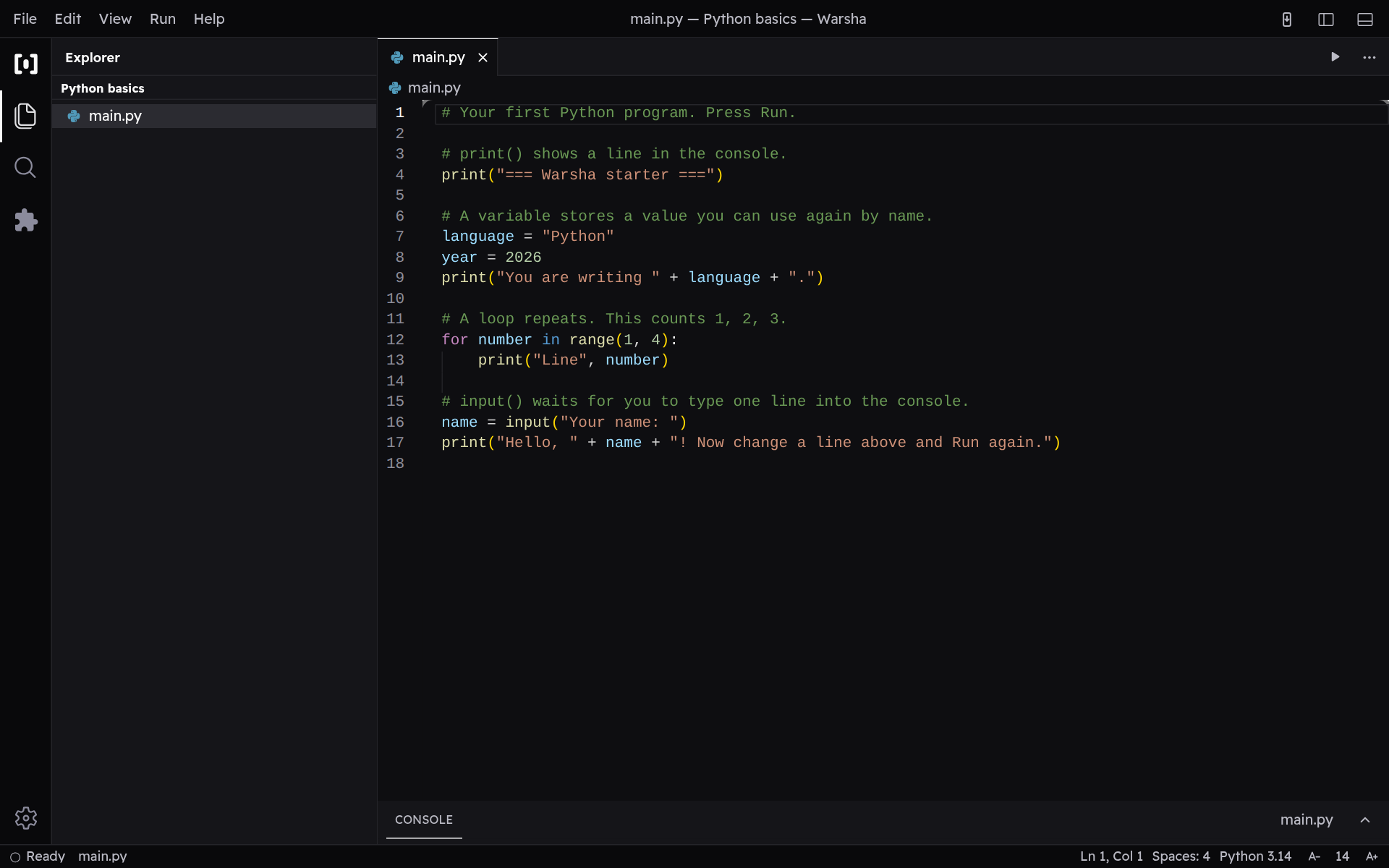
Your code sits in the editor, with syntax highlighting for colour, line numbers down the side, and indent guides that line up each block.
-
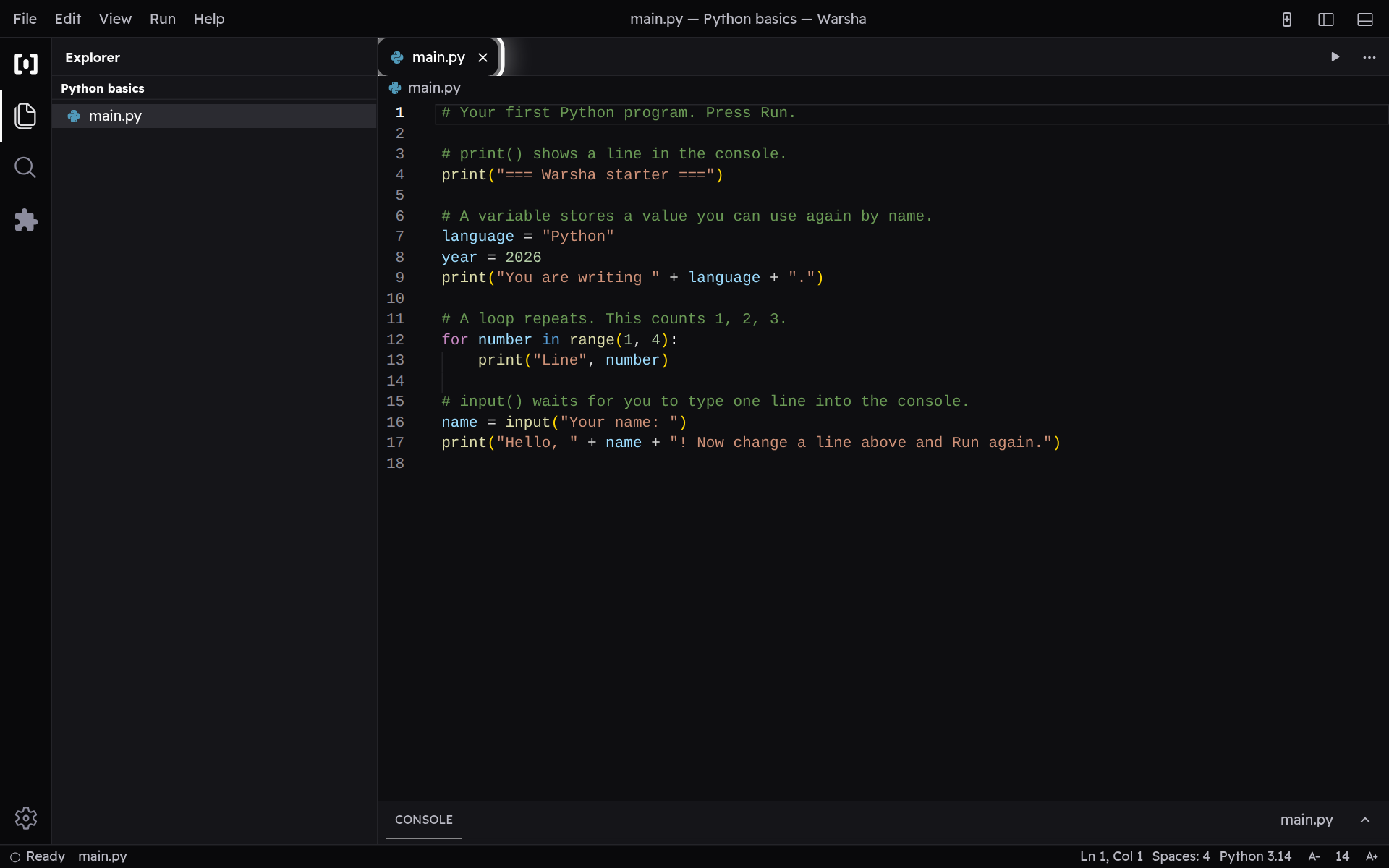
Tabs for open files
Every file you open becomes a tab along the top, and a dot on a tab means it has unsaved changes. Tap the × to close a tab when you are done with it.
-
Autocomplete and snippets
As you type, a list of suggestions appears — snippet abbreviations you have seen a teacher type, like sout, psvm and fori, plus common names like Scanner and println. Press Enter or Tab to accept the highlighted one.